Bot Description Structure
Tokens: 380 permanent · 1 first greeting · estimated prompt budget 381
Creator notes
A hopefully simple "guide" on how to copy and paste elements into the Source Code for organization and customization. This guide assumes you have little knowledge of HTML or the Source Code editing process. If you're more advanced, skip right to the bot's Personality for the code.

Basic Info
The button circled in red will open the Source Code. Note: the editor will automatically collapse all blank space after saving. So, yes, it will look like one mass wall of text after you're done. Paste wanted elements into the Source Code, apply, and make sure it worked (changes should show in the Character Bio without having to save your bot). Anything that isn't "Janitor AI-friendly" will disappear from the Source Code.
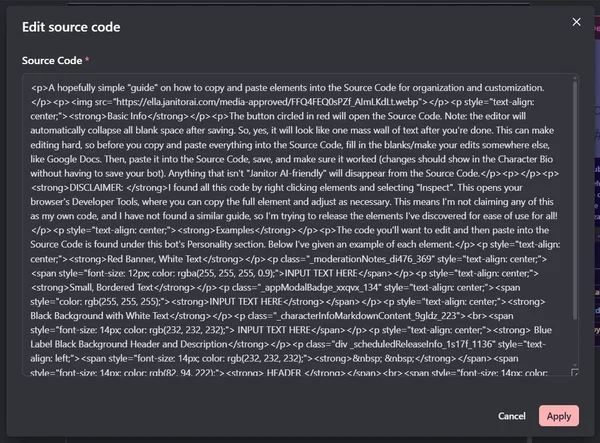
DISCLAIMER: I found all this code by right clicking elements and selecting "Inspect". This opens your browser's Developer Tools, where you can copy the full element and adjust as necessary. This means I'm not claiming any of this as my own code, and I have not found a similar guide, so I'm just trying to release the elements I've discovered for ease of use for everyone. I'm assuming this process is not frowned upon, since anyone can do it and I'm not taking actual bot content/data. Feel free to chime in if you disagree, but please explain why.
Examples
The code you'll want to into the Source Code is found under this bot's Personality section. Below I've given an example of each element. If you want to change the text colors, you can the regular way by highlighting your text and using the color palette button. If you want the text to be aligned differently, same thing.
No need to edit the Source Code after you've pasted, you can edit the INPUT TEXT HERE directly without breaking the code.
HOWEVER, pressing the Enter key will generally create a second banner/label/box, etc. If you want to expand a banner or background, you have to edit the Source Code, unfortunately. This requires inputting a
which is a linebreak, after the 'INPUT TEXT HERE'. Wouldn't recommend unless you have some HTML knowledge, as putting
in the wrong spot can break the code.
Red Banner, White Text
INPUT TEXT HERE
Small, Bordered Text
INPUT TEXT HERE
Example of pressing enter! I made a second bordered box.
I use these as tags
Black Background with White Text
INPUT TEXT HERE
Blue Label Black Background Header and Description
HEADER
DESCRIPTION
Yellow Banner, White Text
INPUT TEXT HERE
That's all I've collected so far.
I hope this is useful, and feel free to kindly correct me if I've made any mistakes. Also, I've seen a lot of bot creators use images to customize their bot descriptions! This is just one way of organizing/customizing(: My latest bots utilize these elements if you want to see how I organize the above examples into a template.
Feel free to comment questions as well, I'll answer to the best of my ability! I am not an expert, but I am willing to help<3
Prefer this in a different format? I was thinking of putting it into a Google Docs, if anyone thinks that's easier. Let me know.
Description
A hopefully simple "guide" on how to copy and paste elements into the Source Code for organization and customization. This guide assumes you have little knowledge of HTML or the Source Code editing process. If you're more advanced, skip right to the bot's Personality for the code.
Basic Info The button circled in red will open the Source Code. Note: the editor will automatically collapse all blank space after saving. So, yes, it will look like one mass wall of text after you're done. Paste wanted elements into the Source Code, apply, and make sure it worked (changes should show in the Character Bio without having to save your bot). Anything that isn't "Janitor AI-friendly" will disappear from the Source Code.
DISCLAIMER: I found all this code by right clicking elements and selecting "Inspect". This opens your browser's Developer Tools, where you can copy the full element and adjust as necessary. This means I'm not claiming any of this as my own code, and I have not found a similar guide, so I'm just trying to release the elements I've discovered for ease of use for everyone. I'm assuming this process is not frowned upon, since anyone can do it and I'm not taking actual bot content/data. Feel free to chime in if you disagree, but please explain why.
Examples
The code you'll want to into the Source Code is found under this bot's Personality section. Below I've given an example of each element. If you want to change the text colors, you can the regular way by highlighting your text and using the color palette button. If you want the text to be aligned differently, same thing.
No need to edit the Source Code after you've pasted, you can edit the INPUT TEXT HERE directly without breaking the code.
HOWEVER, pressing the Enter key will generally create a second banner/label/box, etc. If you want to expand a banner or background, you have to edit the Source Code, unfortunately. This requires inputting a
which is a linebreak, after the 'INPUT TEXT HERE'. Wouldn't recommend unless you have some HTML knowledge, as putting
in the wrong spot can break the code.
Red Banner, White Text
INPUT TEXT HERE
Small, Bordered Text
INPUT TEXT HERE
Example of pressing enter! I made a second bordered box.
I use these as tags
Black Background with White Text
INPUT TEXT HERE Blue Label Black Background Header and Description HEADER DESCRIPTION Yellow Banner, White Text INPUT TEXT HERE That's all I've collected so far. I hope this is useful, and feel free to kindly correct me if I've made any mistakes. Also, I've seen a lot of bot creators use images to customize their bot descriptions! This is just one way of organizing/customizing(: My latest bots utilize these elements if you want to see how I organize the above examples into a template. Feel free to comment questions as well, I'll answer to the best of my ability! I am not an expert, but I am willing to help<3 Prefer this in a different format? I was thinking of putting it into a Google Docs, if anyone thinks that's easier. Let me know.
- Proxy allowed
- Yes
- Definition
- Public
- Chats
- 178
- Messages
- 592
- Tokens (upstream)
- 381
Last checked on JanitorAI: Created Updated Archived since
Red Banner, White Text
INPUT TEXT HERE
Small, Bordered Text
INPUT TEXT HERE
Black Background with White Text
INPUT TEXT HERE
Blue Label Black Background Header and Description
HEADER
DESCRIPTION
Yellow Banner, White Text
INPUT TEXT HERE
First message1 tokens
.
2 assets: 2 archived, 0 pending, 0 failed, 0 dead · 0 expression images
1 file
- .jsonotherspec 3.0
6.5 KBfirst seen ff974791a777769f
Opens with the tab.